What does using EcoCheck in ChatGPT or Claude include?
What do you need before connecting?
How to add EcoCheck to ChatGPT
How to add EcoCheck to Claude
How to add EcoCheck to Claude Code, Cursor, VS Code
What can the AI do in EcoCheck?
Sample prompts for each task
Initial setup
Recording monthly data
Reports
EU CBAM
Emission reduction
How long does each task take?
Permissions: who can let the AI do what?
Common errors and how to fix them
Add the CBAM and ISO 14064 AI Skills
Frequently asked questions
Does using EcoCheck in ChatGPT or Claude cost extra?
Can the AI delete data on its own?
Is company data used to train AI?
Can I use EcoCheck without AI?
How do I disconnect the AI?
How to Use EcoCheck in ChatGPT and Claude: Step-by-Step (2026)
You can use EcoCheck right inside ChatGPT or Claude: add EcoCheck once, sign in, then give it tasks in plain language. The AI works directly on your company's greenhouse gas inventory: it records activity data, calculates emissions by Scope, prepares CBAM data and exports Word reports. This guide walks you through each step: adding EcoCheck to ChatGPT, Claude or Claude Code, granting permissions, sample prompts for each task, and how to fix common errors.
Updated on 8/10/2026 for the new connection version (35 tools, with write access). If you only need an overview, start with Connecting EcoCheck to ChatGPT and Claude via MCP.
What does using EcoCheck in ChatGPT or Claude include?
EcoCheck connects to AI assistants through MCP (Model Context Protocol), the open standard that ChatGPT and Claude use to call external software. You do not need technical knowledge: you just paste an address into your AI app. There are two addresses for two purposes:
| Public tools | Company data | |
|---|---|---|
| Address | https://ecocheck.ai/mcp | https://ecocheck.ai/mcp/account |
| Sign-in | Not required | EcoCheck sign-in (OAuth 2.1) |
| Number of tools | 14 | 35 (18 read, 15 write, 2 delete with confirmation) |
| Used for | Checking inventory obligations, 2026 regulations, CBAM default values and costs, quick ISO 14064-1 inventories from the data you provide | Working on your own company's data: organizations, facilities, inventories, monthly data, reports, reduction targets, CBAM, members |
Data written by the AI goes into the same inventory your team sees on the EcoCheck web app. There is no separate copy and no re-entry.
What do you need before connecting?
- An AI app that lets you add a custom connector: ChatGPT (Developer mode), Claude (web, desktop), Claude Code, Cursor, VS Code. Custom connector support depends on your plan in each app.
- An EcoCheck account (only needed to work with company data). No account yet? Sign up for a trial or use the public tools.
- AI permission in the workspace. The workspace owner decides which members can use AI and at what level (see the permissions section below). By default, every member is at View only.
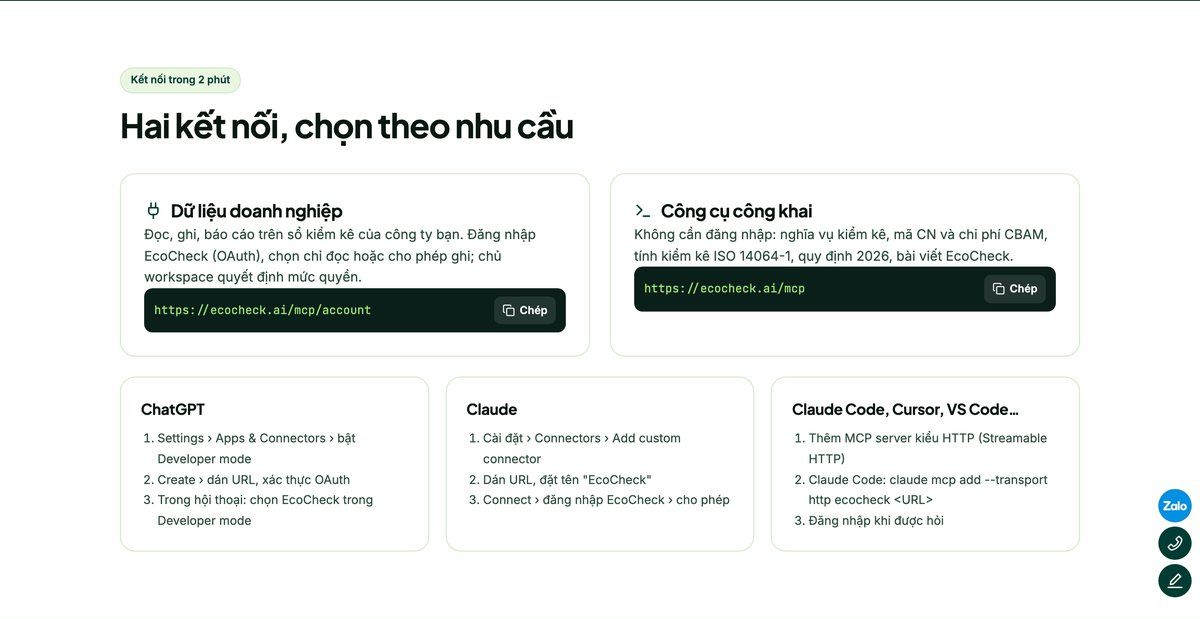
Adding EcoCheck to ChatGPT and Claude: connection URLs and steps per app
How to add EcoCheck to ChatGPT
- Go to Settings › Apps & Connectors and turn on Developer mode (under Advanced).
- Choose Create, name it "EcoCheck", paste
https://ecocheck.ai/mcp/accountand select OAuth authentication. - Sign in to EcoCheck and choose read only or read and write.
- In a conversation, select EcoCheck in Developer mode, then give it tasks in plain language.
How to add EcoCheck to Claude
- Open Claude (claude.ai or the desktop app) and go to Settings › Connectors › Add custom connector.
- Name it "EcoCheck" and paste the address
https://ecocheck.ai/mcp/account(orhttps://ecocheck.ai/mcpif you only need the public tools). - Click Connect. Claude opens the EcoCheck sign-in page. Sign in with your account.
- On the permission screen, choose read only or read and write. Choose read and write if you want the AI to enter data, create emission sources and prepare CBAM data.
- In a new conversation, enable EcoCheck in the tools list and try: "List my EcoCheck workspaces."
How to add EcoCheck to Claude Code, Cursor, VS Code
For Claude Code, run one command:
claude mcp add --transport http ecocheck https://ecocheck.ai/mcp/accountOn the first tool call, Claude Code opens your browser so you can sign in to EcoCheck. For Cursor and VS Code, add an HTTP MCP server (Streamable HTTP) with the same address; the app handles OAuth sign-in for you.
What can the AI do in EcoCheck?
There are 35 tools, but you do not need to remember their names. The AI picks the right tool for your prompt. The table below shows what kinds of tasks you can hand over:
| Task group | Read tools | Write tools |
|---|---|---|
| Getting started | list_workspaces, get_my_access, ecocheck_guide, search, fetch | |
| Setup | get_organizations, get_facility, get_inventories | save_organization, save_facility, save_inventory, manage_inventory_year |
| Emission sources | get_emission_accounts, lookup_reference | save_emission_account, add_accounts_from_template, save_custom_factor |
| Monthly data | get_journals, preview_emission | record_activity, update_journal |
| Reports | get_emissions_report, export_report, get_assessments | save_assessment |
| Emission reduction | get_targets | save_target, save_reduction_action |
| EU CBAM | get_cbam | save_cbam_data, run_cbam_action |
| Members | get_workspace_admin | invite_member |
| Delete (always asks first) | delete_records, remove_member |
A read-only connection only sees the 18 read tools. The two delete tools run only when you confirm explicitly in the conversation and your account has Full access.
Sample prompts for each task
Write as you would when briefing a colleague: name the facility, the period, the figures and the units. Vietnamese-style numbers (dot as thousands separator, comma as decimal mark) are also read correctly.
Initial setup
- "Create the organization ABC Steel Co., Ltd., the facility Binh Duong Rolling Mill, and a 2026 inventory under Decree 06/2022/ND-CP with 2025 as the base year."
- "Add emission sources for the rolling mill from the Decree 06/2022/ND-CP template: grid electricity, diesel for the generator, LPG for the furnace, R-410A refrigerant."
Recording monthly data
- "Record September 2026 data for the rolling mill: 182,400 kWh electricity, 1,250 L diesel for the generator, 3.2 t LPG for the furnace."
- "Enter electricity from January to August: 176,300; 171,900; 180,250; 178,600; 185,400; 184,100; 179,800; 181,200 kWh."
- "Change July electricity to 179,300 kWh and show me a preview of the emissions before saving."
Reports
- "Total 2026 emissions to date by Scope. Which source is the largest?"
- "Prepare a Q1 inventory report under the 6 ISO 14064-1 categories and export it as a Word file."
- "Compare 2026 Scope 2 emissions with the 2025 base year."
EU CBAM
- "How much CBAM cost will we pay if we export 12,000 t of hot-rolled coil 7208 39 00 to the EU in 2026?" Using EU default values and the Q3 2026 certificate price (€82.32), the result is about €1,234,059, equivalent to 14,991 certificates.
- "Prepare CBAM data for the plant: hot rolling process, electricity source, purchased steel billets, then calculate the SEE for code 7208 39 00."
Emission reduction
- "Set a target to cut Scope 1 and 2 by 30 % by 2030 against the 2025 base year, and add a rooftop solar installation action."
How long does each task take?
Times were measured with Claude Sonnet working through the EcoCheck connection in internal tests in October 2026. Actual times depend on your data and question.
| Task | Time |
|---|---|
| Emissions report by Scope | 23 seconds |
| CBAM cost estimate for one product code | 27 seconds |
| Correcting one entered figure | 28 seconds |
| Entering 8 months of electricity at once | 38 seconds |
| Recording monthly data (electricity, diesel, LPG) | 46 seconds |
| ISO 14064-1 inventory for one quarter | 1 minute 40 seconds |
| Setting up organization, facility, inventory, sources | 2 minutes 6 seconds |
| Preparing CBAM data and calculating SEE | 3 minutes 24 seconds |
Permissions: who can let the AI do what?
The AI's permission is always the lower of two layers:
- Connection: when connecting, the user chooses read only or read and write (scopes
ecocheck/read,ecocheck/write). - Workspace owner: on the Workspace management page, under AI Assistant, the workspace owner turns AI on or off for the whole company and sets a level for each member:
- None: the AI cannot access the workspace.
- View only (default): read data and reports.
- View and edit: add or edit data, sources, facilities, CBAM.
- Full access: also allows deletion (always requires confirmation) and member management (invite, change role, remove).
The AI only sees data that the user is allowed to see. Every action is logged: who, which tool, when, and whether it was allowed or blocked. The workspace owner can filter the log and export it to CSV for audits, and can disconnect AI for one member or the whole company immediately. The AI never knows your password.
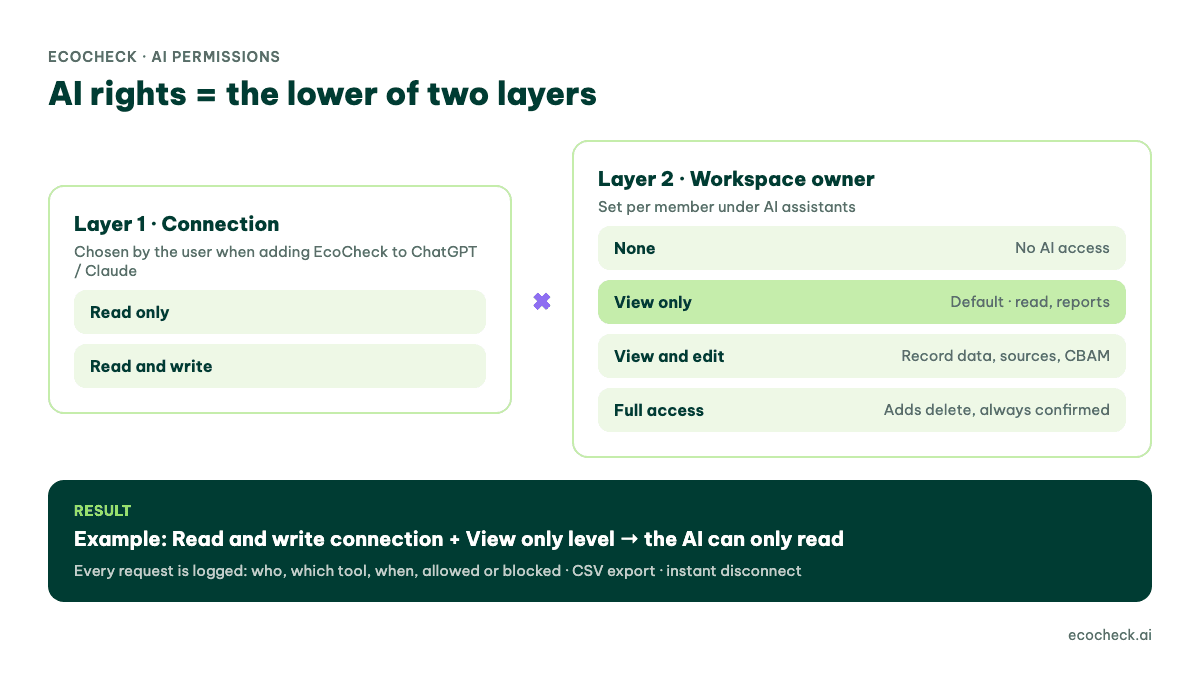
Figure 1: Two permission layers when using EcoCheck in ChatGPT and Claude: the connection scope and the level set by the workspace owner
Common errors and how to fix them
| Symptom | Cause | Fix |
|---|---|---|
| The AI says it has no write permission | The connection is read only, or your level is View only | Disconnect and reconnect EcoCheck, choosing read and write; ask the workspace owner to raise your level. Ask the AI "what are my AI permissions?" to see the details. |
| The AI cannot see the workspace | The workspace owner turned AI off or set your level to None | Contact the workspace owner. |
| You have to sign in again | The session expired or the connection was revoked | Click Connect again in the AI app. |
| Data entered with the wrong unit | The prompt did not state the unit | Always state the unit (kWh, L, t, m³). Ask to "preview the emissions before saving". |
| The app has no option to add a connector | Your plan or app version does not yet support remote MCP | Use Claude Code, Cursor or VS Code, or work directly on the EcoCheck web app. |
Add the CBAM and ISO 14064 AI Skills
If you use Claude, also install the free CBAM and ISO 14064 AI Skills. The Skills provide expert knowledge (official CBAM default values, how to calculate SEE, the ISO 14064-1 reporting checklist, verification files); the EcoCheck connection provides the data and the actions in EcoCheck. With both, the AI understands the method and records the data in the right place.
Want a quick try without an account? Use the CBAM cost calculator or the inventory obligation checker. To see everything EcoCheck can do with AI, visit Use EcoCheck in ChatGPT and Claude.
Frequently asked questions
Does using EcoCheck in ChatGPT or Claude cost extra?
The AI connection is included in your EcoCheck account at no separate charge. You pay the AI provider for ChatGPT or Claude under their own plans.
Can the AI delete data on its own?
No. Deletion is only available at the Full access level, and the AI must ask again and get your explicit confirmation in the conversation before deleting. Every deletion is recorded in the log.
Is company data used to train AI?
EcoCheck only returns the data the called tool needs, within the user's permissions. Whether the AI provider stores or uses conversation content depends on its policy and your account settings (for example, business plans usually do not use data for training).
Can I use EcoCheck without AI?
Yes. Everything the AI does can be done directly on the EcoCheck web app. AI is simply an additional, faster way to work.
How do I disconnect the AI?
Users remove the EcoCheck connector in their AI app. The workspace owner can disconnect AI for one member or the whole workspace under AI Assistant; the change takes effect immediately.
Doanh nghiệp bạn thuộc diện phải kiểm kê khí nhà kính?
EcoCheck tự động tính Scope 1/2/3, xuất báo cáo chuẩn NĐ06/TT38 chỉ 1-click — tiết kiệm 90% thời gian so với Excel.
Bài viết mới nhất


![Top 5 Công Cụ Tính Toán Phát Thải Khí Nhà Kính [Cập Nhật 2026]](https://cms.ecocheck.ai/uploads/Eco_Check_Top_5_cong_cu_va_phan_mem_ho_tro_kiem_ke_khi_nha_kinh_d9d03bf693.png)
![Phương pháp Kiểm kê Khí nhà kính: GHG Protocol & ISO 14064 [2026]](https://cms.ecocheck.ai/uploads/Cac_phuong_phap_va_tieu_chuan_kiem_ke_khi_nha_kinh_pho_bien_e645f7df80.png)